


WebTextEditor can be resized to a larger or smaller size by using resize element in main footer area. To enable this feature, simply set AllowResize property to one of the following value:
- Yes
Enable WebTextEditor to be resized horizontally and vertically
- VerticalOnly
Enable WebTextEditor to be resized vertically
- HorizontalOnly
Enable WebTextE ditor to be resized horizontally
- No (default value)
Disable resize functionality in WebTextEditor
As shown below, a gray area will be displayed above WebTextEditor when it's being resized. The gray area represents the final size of WebTextEditor after resize action is performed.
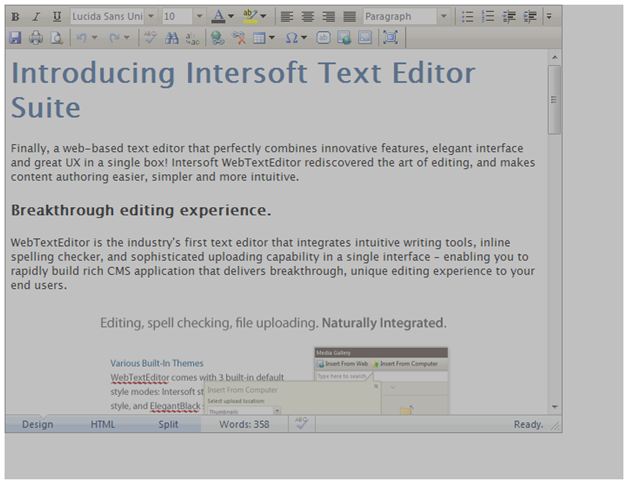
Related to AllowResize feature, maximum and minimum size can be set to WebTextEditor, using MaximumSize and MinimumSize properties. When both properties are set, WebTextEditor can only be enlarged until the value of maximum size and reduced to the value of minimum size.
For example: when MaximumSize property is set to 1024, 768, WebTextEditor can only be enlarged until 1024px width and 678px height. When MinimumSize is set to 500, 400; WebTextEditor can only be reduced until 500px width and 400px height. When both properties are set to -1, -1, there is no size limitation when WebTextEditor is resized.
In This Section
How-to: Allow Resize in WebTextEditor
 See Also
Other Resources
{Full Screen}
{Hide ToolBar using header context menu}